How to solve equations, polynomials and simultaneous equations on a Casio ClassWiz or fx-CG50
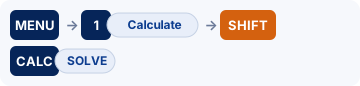
On the fx-991EX: MENU → 1 (Calculate) → SHIFT CALC (SOLVE).On the fx-CG50: MENU → EQUATION … F3 (SOLVER).
Polynomial roots, simultaneous linear equations and any equation f(x) = g(x) with the numerical solver. Exact keystrokes for the Casio ClassWiz first (the fx-991EX and fx-991CW have different menus, so each has its own tab), then the graphic calculators, a worked example you can check your answers against, the mistakes that cost marks, and the same thing in Desmos.
When you need it
Useful for checking a quadratic you have factorised or solved with the formula, and for simultaneous equations. Examiners still want the method (factorising, the formula or elimination), so use the calculator to check, not instead.
Practise it: IGCSE units (Unit 2: Equations and inequalities).
Keystrokes on your calculator
Pick your calculator: the page remembers it next time.
Solving equations on the Casio fx-991EX ClassWiz
Written for the fixed ROM (these models take no OS updates). Casio fx-991EX ClassWiz: scientific (no graphs).
Watch the key presses on the fx-991EX13 presses, one at a time
The walkthrough needs JavaScript. The same key presses are in the numbered steps below.
- MENU, then highlight Equation/Func with the cursor keys and select it (it is the 10th icon).
- Polynomial: 2 (Polynomial), then the degree (3 for a cubic). Type 1 = 0 = −2 = −5 =, then press = repeatedly to step through x₁, x₂ and x₃.
- Simultaneous: MENU, highlight Equation/Func with the cursor keys and select it, 1 (Simul Equation), choose 3 unknowns, fill in the coefficient table with = after each number, then = to show x, y, z.
- Any other equation: MENU 1 (Calculate). Type e^x = 3 − x (e^ is SHIFT ln; the = is ALPHA CALC), then SHIFT CALC (SOLVE), give a start value and press =. SOLVE works in Calculate mode only.
- Polynomials up to degree 4 and up to 4 simultaneous unknowns. For a quadratic it also shows the vertex after the roots (see Quadratic graphs: roots and vertex).
- SOLVE uses a numerical method and finds one root, the one nearest the start value: try another start value for the next root. The closer Left − Right is to 0, the more accurate the answer.
Solving equations on the Casio fx-991CW ClassWiz
Written for the fixed ROM (these models take no OS updates). Casio fx-991CW ClassWiz: scientific (no graphs); the newer ClassWiz with a HOME menu of apps.
- HOME, choose the Equation app with the arrow keys, OK.
- Polynomial: choose Polynomial and the form (ax³+bx²+cx+d for a cubic), type the coefficients into the Coefficient Editor, then EXE to step through the solutions.
- Simultaneous: choose Simul Equation, pick the number of unknowns, fill the coefficient table, EXE to show the solution.
- Any other equation: in the Equation app choose Solver, type the equation (the = sign is SHIFT (), EXE, give a starting value for x and EXE again.
- Polynomials from degree 2 to 4. Solver uses Newton's method, so it returns one solution, and which one depends on the starting value: if it finds none, start closer to the answer.
Solving equations on the Casio fx-CG50
Written for OS 3.80 (menus unchanged from OS 3.60 onwards as far as we can tell). Casio fx-CG50: graphic (GDC).

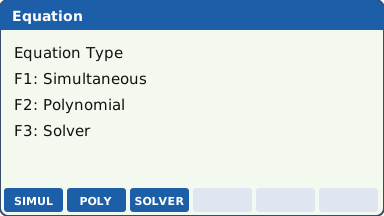
- MENU, then choose EQUATION (the icon labelled A: highlight it and press EXE).
- Polynomial: F2 (POLYNOMIAL), choose the degree (F2 = 3 for a cubic), type the coefficients 1, 0, −2, −5 pressing EXE after each (use (−) for negatives, and 0 for a missing term), then F1 (SOLVE).
- Simultaneous: EXIT back, F1 (SIMULTANEOUS), choose the number of unknowns (F2 = 3), type the coefficient matrix row by row (a, b, c, d for ax + by + cz = d), then F1 (SOLVE).
- Any other equation: F3 (SOLVER). Type e^x = 3 − X using SHIFT . for the = sign, press EXE, check the Lower and Upper search bounds, then F6 (SOLVE). Lft − Rgt should be 0 (or tiny).
- Complex roots of a polynomial only appear when SHIFT MENU (SET UP) → Complex Mode is a+bi; in Real mode you see just the real root(s).
- SOLVER finds one root, the one nearest your starting value; change X or the bounds to find another. For all roots, graph y = f(x) − g(x) and use G-Solve ROOT instead.
- The polynomial solver goes up to degree 6; simultaneous equations up to 6 unknowns.
Solving equations on the TI-84 Plus CE
Written for OS 5.8.x. TI-84 Plus CE: graphic (GDC); also the TI-84 Plus CE Python / CE-T Python Edition.

- Polynomial or simultaneous: apps → PlySmlt2 → 1: Poly Root Finder (or 2: Simult Eqn Solver). Set the degree (or the number of equations and unknowns) and press graph (NEXT).
- Type the coefficients: 1, 0, −2, −5 for x³ − 2x − 5 (use (−), not −, for negatives). Press graph (SOLVE).
- Any other equation: math, then ▲ to reach Solver… at the bottom of the MATH list, and enter. Type the equation as 0 = e^(X) − 3 + X (the Solver wants 0 = …), enter.
- Put a starting guess next to X =, then alpha enter (SOLVE). A small square marks the solved variable; left−rt should be 0.
- PlySmlt2 is preloaded on the CE. The Solver in the MATH menu always works.
- For complex roots in PlySmlt2 press mode inside the app and choose a+bi.
- Depending on the settings chosen when Press-to-Test is turned on, some apps can be disabled: check yours before the exam.
Solving equations on the TI-Nspire CX II
Written for OS 6.x. TI-Nspire CX II: graphic (GDC), non-CAS (the CX II CAS is a different model: check the exam rules before using one).

- Open a Calculator page: home/on → New Document (or ctrl doc → Add Calculator).
- Polynomial: menu → Algebra → Polynomial Tools → Find Roots of Polynomial. Enter the degree 3, OK, then type the coefficients (or the polynomial) and press enter: polyRoots(x^3−2x−5, x).
- Simultaneous: menu → Algebra → Solve System of Linear Equations. Enter 3 equations and the variables x, y, z, OK, type each equation into the template and press enter.
- Any other equation: menu → Algebra → Numerical Solve, then nSolve(e^(x)=3−x, x) and enter. Add a guess or bounds, e.g. nSolve(…, x, 0, 2), to choose which root.
- The non-CAS CX II has no symbolic solve(); nSolve gives one numerical root at a time.
- For complex polynomial roots use cPolyRoots( instead of polyRoots(.
For teachers: Show on the board Print a keystroke card Teaching GDC skills
Worked example
(a) Solve x³ − 2x − 5 = 0. (b) Solve 2x + 3y − z = 5, x − y + 2z = 3, 3x + y + z = 10. (c) Solve ex = 3 − x.
Answers (checked with Python)
(a) x = 2.09455 (the other two roots are complex: −1.04728 ± 1.13594i, shown only in complex mode). (b) x = 4.6, y = −2, z = −1.8. (c) x = 0.792060 (0.792 to 3 s.f.).
Now try it on an exam-style question
Use the keystrokes above on IGCSE-style simultaneous equations questions. Free to try, no sign-up.
Common calculator mistakes
- Missing terms: x³ − 2x − 5 has no x² term, so its coefficient 0 must be entered. Leaving it out solves a different equation.
- Using the subtraction key − instead of the negative key (−) gives a Syntax ERROR.
- Trig equations: solve in the right angle mode (radians unless the question uses degrees) and within the domain the question gives. The solver finds one root; the question may want all of them.
- Rounding too early: keep the full answer in memory (store it in A) if you use it again; only round the final answer to 3 s.f.
- Writing just the answer: show the equation you solved, e.g. "x³ − 2x − 5 = 0 ⇒ x = 2.09 (GDC)".
If you get an error
fx-991EX: Math ERROR, Syntax ERROR, Can't Solve
Math ERROR A result, or a value you typed, is outside the range the calculator can handle, or you asked for something mathematically impossible, such as dividing by zero. Check: Look for a zero denominator, sin⁻¹ or cos⁻¹ of a number bigger than 1 (often a wrong side or angle in the sine or cosine rule), the log of 0 or of a negative number, and a value stored in a variable earlier that you forgot about. Fix: Casio's advice: check the values you typed, use fewer digits and try again. If a variable is the input to a function, make sure its value is one the function accepts.
Syntax ERROR There is a problem with the format of the calculation. In Matrix and Vector calculations it also appears when the sizes do not suit the operation. Check: A missing or extra bracket, or two operation signs in a row. With matrices or vectors: adding a 2 × 2 to a 3 × 3, or a product whose sizes do not match. Fix: Casio's advice: make the corrections. For matrices and vectors, check the size you set for each one.
Can't Solve SOLVE could not find a solution. Check: A typing slip in the equation, or a start value far from the root you want. Fix: Casio's advice: check the equation for mistakes, then give a start value close to the solution you expect.
fx-991CW: Math ERROR, Syntax ERROR
Math ERROR A result, or a value you typed, is outside the range the calculator can handle, or you asked for something mathematically impossible, such as dividing by zero. Check: Look for a zero denominator, sin⁻¹ or cos⁻¹ of a number bigger than 1 (often a wrong side or angle in the sine or cosine rule), the log of 0 or of a negative number, and a value stored in a variable earlier that you forgot about. Fix: Casio's advice: check the values you typed, use fewer digits and try again. If a variable is the input to a function, make sure its value is one the function accepts.
Syntax ERROR There is a problem with the format of the calculation: it is typed in a form the calculator cannot read. Check: A missing or extra bracket, two operation signs in a row, or a function with nothing after it. Fix: Casio's advice: make the corrections and try again.
fx-CG50: Ma ERROR
Ma ERROR Casio's Math ERROR: the result is outside the allowable calculation range, or you are trying to do an illegal mathematical operation, such as dividing by zero. Check: Look for a zero denominator, sin⁻¹ or cos⁻¹ of a number bigger than 1 (often a wrong side or angle in the sine or cosine rule), the log of 0 or of a negative number, and a value stored in a variable earlier that you forgot about. Fix: Casio's advice: check your input values and change them so the result is within the allowable range.
TI-84 Plus CE: ERR:DOMAIN, ERR:SYNTAX
ERR:DOMAIN A value given to a function or instruction is outside the values it accepts. In a regression, TI says it means the data do not suit the model you chose. Check: Is every input allowed? σ must be positive, p between 0 and 1, and sin⁻¹ or cos⁻¹ needs a number from −1 to 1. Exponential and power models need positive data. Fix: Change the value that is out of range, or choose a model that suits the data.
ERR:SYNTAX The command contains a syntax error: a misplaced function, argument, bracket or comma. Check: TI points out that subtract − and negative (−) are different keys, and using the wrong one causes this error. Then check the brackets and commas. Fix: Find the misplaced function, argument, bracket or comma and correct it.
TI-Nspire CX II: Domain error, Syntax error
Domain error An argument must be in a specified domain, and this one is not (TI's example: rand(0)). Check: Is every input allowed? σ must be positive, p between 0 and 1, and sin⁻¹ or cos⁻¹ needs a number from −1 to 1. Fix: Change the value that is out of range.
Syntax error The syntax checker found a problem. Check: A missing bracket or comma. Fix: Correct the expression and try again.
Do it in Desmos
Not in the exam. Desmos is not allowed in IGCSE exams. Use it to learn, to check an answer and to see the graph behind a question.
- Type the left-hand side and the right-hand side as two separate graphs: y = e^x and y = 3 − x.
- Click the point where they cross: Desmos shows its coordinates (0.792, 2.208).
- For a polynomial, graph y = x³ − 2x − 5 and click where it crosses the x-axis.
- Simultaneous equations in two unknowns are two straight lines: click their intersection. Three unknowns need the Desmos Matrix Calculator (desmos.com/matrix).
Open desmos.com/calculator (free, in any browser) and type:
y=e^{x}y=3-xy=x^{3}-2x-5
Questions
Can I use a calculator for solving equations in the exam?
On Pearson Edexcel International GCSE Maths A (4MA1), yes: Paper 1H and Paper 2H both allow a calculator with no CAS. On Cambridge IGCSE 0580 (from 2025), Papers 1 and 2 are non-calculator, and the syllabus says you should have a scientific calculator for Papers 3 and 4.
What are the fx-991EX keystrokes for solving equations?
MENU, then highlight Equation/Func with the cursor keys and select it (it is the 10th icon). Then Polynomial: 2 (Polynomial), then the degree (3 for a cubic). Type 1 = 0 = −2 = −5 =, then press = repeatedly to step through x₁, x₂ and x₃. Then Simultaneous: MENU, highlight Equation/Func with the cursor keys and select it, 1 (Simul Equation), choose 3 unknowns, fill in the coefficient table with = after each number, then = to show x, y, z. The full steps and the other calculators are in the keystrokes section above.
Does this work on other calculators?
Yes. This page has keystrokes for the Casio fx-991EX ClassWiz, Casio fx-991CW ClassWiz, Casio fx-CG50, TI-84 Plus CE and TI-Nspire CX II. The worked example has the same answers on every model, so use it to check.
What should I write as working?
Write the maths, not the key presses: say what you are finding in normal notation (the equation, the probability statement or the integral), then the calculator's answer to the accuracy the question asks for (often 3 significant figures). Keep full accuracy in later parts.
More calculator skills
Sources
- Casio fx-991EX / fx-570EX Quick Start Guides : Casio fx-991EX ClassWiz, the fixed ROM (these models take no OS updates).
- Casio fx-991CW / fx-570CW User's Guide : Casio fx-991CW ClassWiz, the fixed ROM (these models take no OS updates).
- Casio fx-CG50 Software User's Guide, OS 3.70 (PDF) : Casio fx-CG50, OS 3.80 (menus unchanged from OS 3.60 onwards as far as we can tell).
- TI-84 Plus CE guidebook (Texas Instruments) : TI-84 Plus CE, OS 5.8.x.
- TI-Nspire CX II guidebooks (Texas Instruments) : TI-Nspire CX II, OS 6.x.
- Desmos Help Center for the Desmos functions.
Menu names are taken from each manufacturer's manual for the models shown. Menus can move slightly between OS updates: if a screen looks different on yours, the manual for your version is the reference, and please tell us so we can update this page. A calculator with no tab here has no checked steps for this skill yet. Worked-example answers were recomputed independently in Python.